I am using a select view to display a list of all categories when the user is creating a note, user can select categories and they save when note is created.
When user clicks into the list of notes and goes to a “notes detail page” the can edit/update the note.
I did try look at momen docs and I used the AI copliot knowledge base for help (that may have confused me more, idk) or maybe I have been in front of this screen too long. I will refrain from detailing my thought process on this, as it is obviously incorrect. Perhaps I should not be using the Select View for this feature?
PROBLEMS:
I can not figure out how to display previously selected categories belonging to this note.
I can not figure out how to then save updated category selections if they change.
Bonus question * How come the select view does not refresh in the “project notes page” after creating a category?
Bind the current note’s category ID to the Default value of the select view on the detail page.
When updating note changes, make the same update to the category_id associated with the note table.
The data source on the page does not refresh automatically. If you add a category, you should refresh the page’s data source on success: App and Page Management | Momen Docs
Alternatively, a simpler approach is to change the request method of this data source from query to subscription, so it will refresh automatically.
hey Eric - I can’t tell if I am missing something or if there is a bug. I thought that on “Default Value” (at the bottom of the Select_Categories select view component) the “Display Field” should be “name” (from drop down) and the “Default Value” input should allow me to access the Data Source. But I can’t figure out how to access the Default Value : [In page Data] Note -> category -> categoryy -> id
I didn’t see a default value in the select view in your project. That’s very strange and seems like a frontend bug. I’ll submit it to the engineering team for you.
Thank you for the sanity check and confirming it is a bug.
I am embarrassed to say but I have easily spent 30-40 hours on this, trying to trouble shoot my mistakes only to find out it is a bug.
I appreciate you looking at it and into resolving this. Please let me know when it is officially corrected so I can come back and try to get it figured out.
The issue has been identified. The cause is that in the configuration of this select view, you enabled multiple selection, so theoretically the default value should be an array type. However, a non-array type was selected, which caused the problem to be hidden.
The correct behavior should be to throw an error and prompt you to select an array-type field.
For your current requirement, simply disable multiple selection, and the default value will be displayed again.
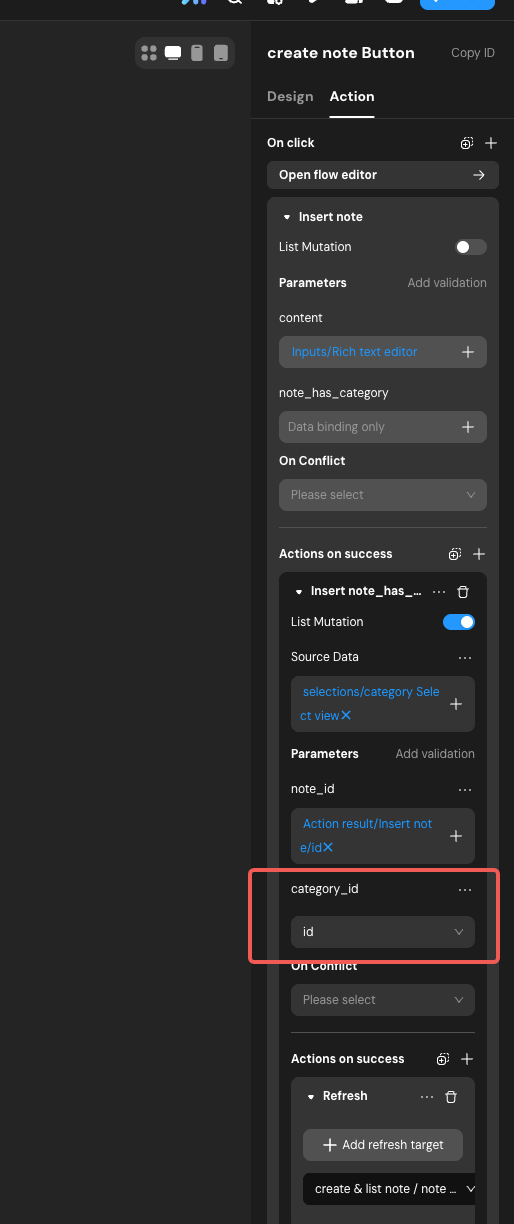
For example, in your scenario, you should select the association table of the data source note (i.e. note_has_category) and then map it to the category_id field within that table.
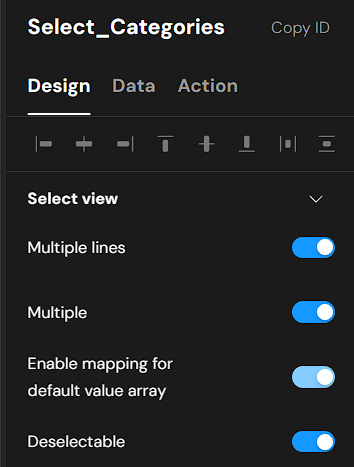
I still can’t get it . I can’t seem to access an array. I don’t know if this has anything to do with it (enable mapping for default value array toggle is light blue)
I probably have brain fatigue with this one. If you have a couple of minutes can you please build a simple app example?, I can just study it and follow the logic and hopefully not ask 400 questions. I just need to be able to:
create a note, select categories for note, save note.
click on list of notes, go to detail page, and edit note and see previously selected categories and add or remove categories (via button > update note action)
I think I roughly understand where your confusion is.
When note and category have a many-to-many relationship, an easier way to understand “updating categories” is to remove the existing associations and then add the new ones.
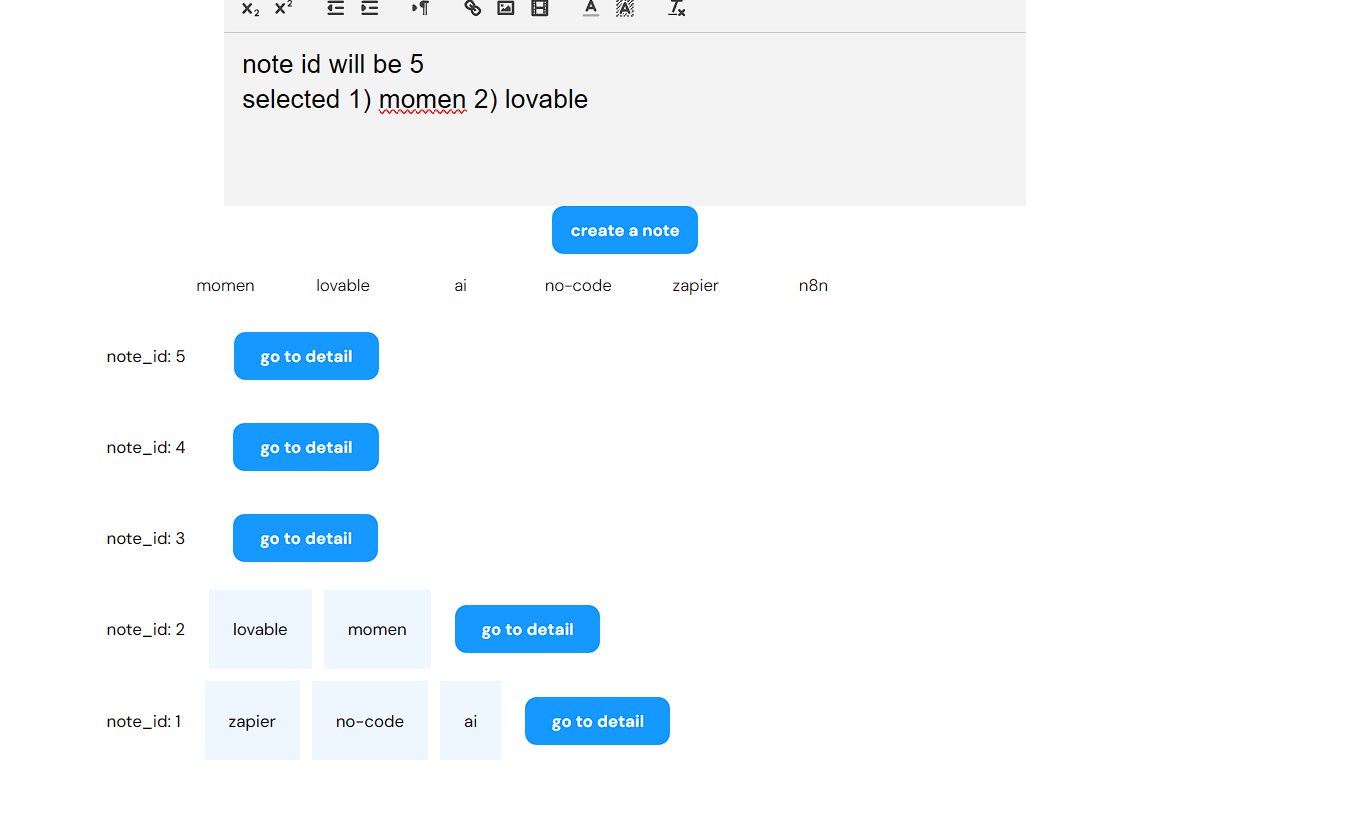
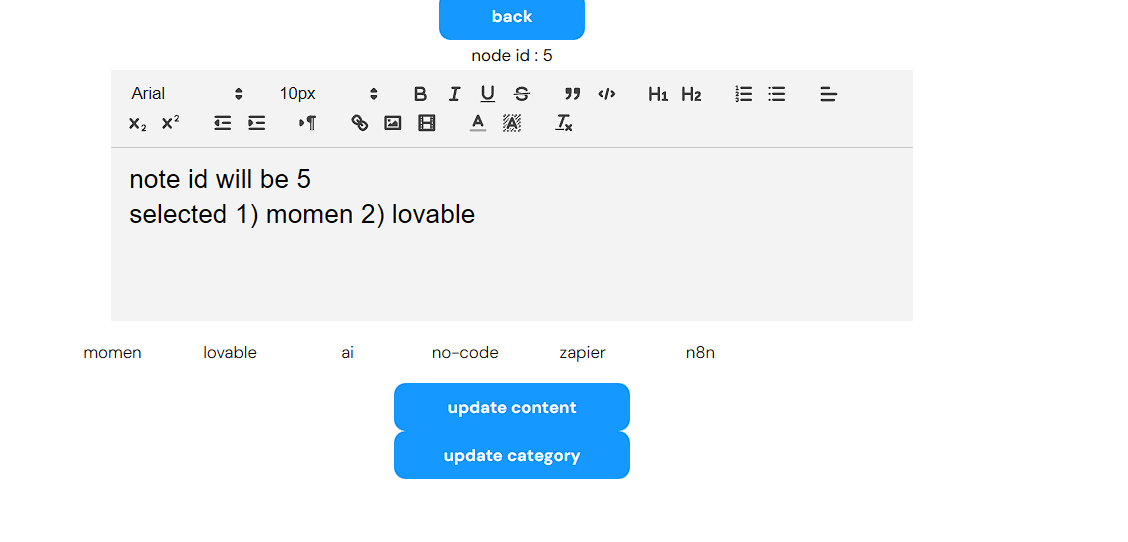
Please look at the screen shots. When I used your app example, you can see the selected categories are not showing up in the list on page “create and list note”. They are are also not showing up on page “note detail” when clicking on note in the list.
Sorry, I found that the configuration here is missing. I’m not sure what caused it—when I tested it earlier, this feature was working. Essentially, you need to use list mutation, and bind the source data to that select view.

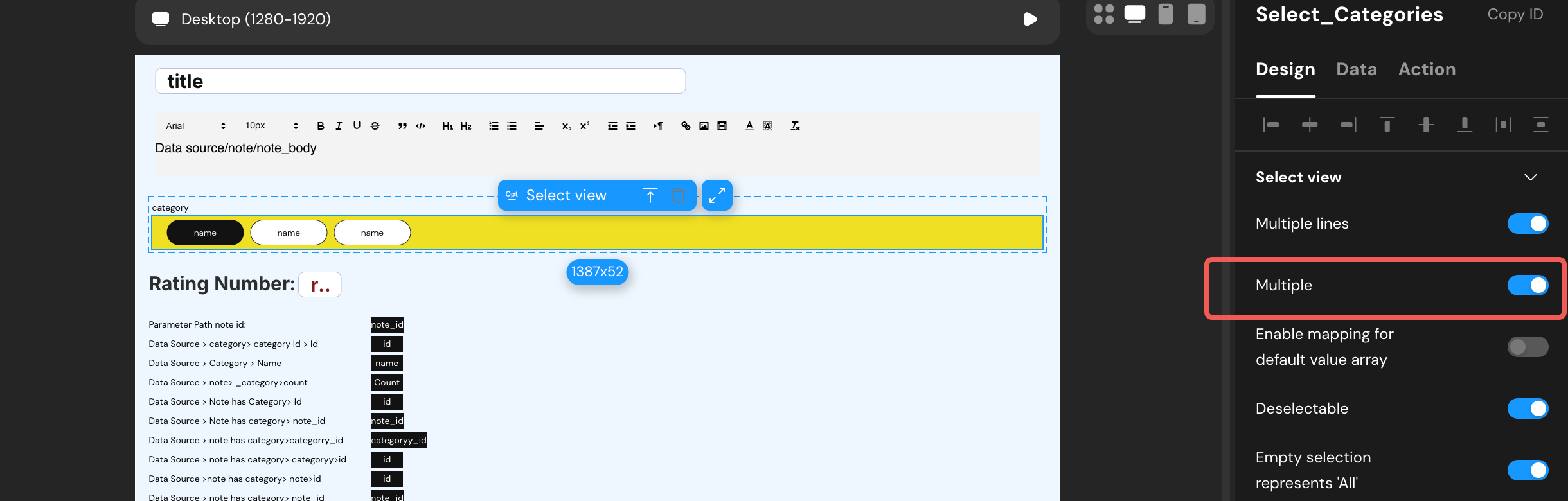
 . I can’t seem to access an array. I don’t know if this has anything to do with it (enable mapping for default value array toggle is light blue)